How to Type Urdu on Windows, Mac, and Phone
Practical Guide • 8 min read
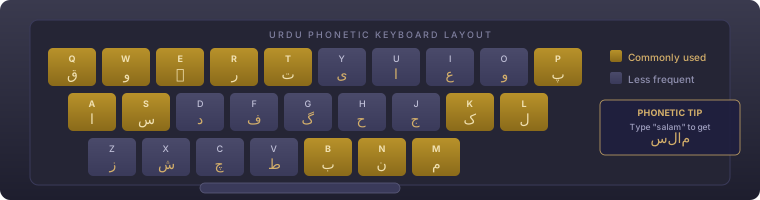
Most devices sold today already include Urdu keyboard support built in. The hard part usually isn't finding the option, it's knowing where to look and which keyboard layout actually matches how you think about typing Urdu. This guide walks through enabling Urdu input on every major platform, plus a practical comparison of the two main typing approaches: the standard Urdu phonetic keyboard and the InPage-style remapped layout.
Windows
Go to Settings → Time & Language → Language & Region, then click "Add a language" and search for Urdu. Once added, Windows installs a default Urdu keyboard layout automatically. You can switch between your existing keyboard and Urdu using the language switcher in the taskbar, or the Windows key + Spacebar shortcut. Windows' default Urdu layout maps keys based on a phonetic-adjacent system rather than visual QWERTY similarity, so the first few minutes of typing usually involve some trial and error before muscle memory builds.
macOS
Open System Settings → Keyboard → Input Sources, click the plus button, and search for Urdu. macOS offers a couple of Urdu input options, including a standard layout. Once added, switch input sources using the input menu in the menu bar (usually shown as a flag icon) or a configurable keyboard shortcut. macOS handles right-to-left text direction automatically across its native apps once an Urdu input source is active, including correct cursor behavior when mixing Urdu and English in the same document.
iPhone (iOS)
Go to Settings → General → Keyboard → Keyboards → Add New Keyboard, then select Urdu. Once added, switch keyboards while typing by tapping the globe icon at the bottom of the keyboard. iOS's Urdu keyboard includes predictive text and autocorrect tuned for Urdu, which becomes genuinely useful once you're typing longer messages rather than single words.
Android
The exact path varies slightly by manufacturer, but generally: Settings → System → Languages & Input → On-screen Keyboard → Gboard (or your installed keyboard app) → Languages → Add Keyboard → Urdu. Gboard, Google's default keyboard on most Android devices, supports both a standard Urdu layout and a phonetic Urdu layout that lets you type Urdu sounds using Latin letters and have them auto-convert, which many beginners find considerably easier to learn than memorizing a new physical key layout.
Standard Layout vs. Phonetic Typing
There are two fundamentally different approaches to Urdu input, and picking the right one matters more than which device you're on. The standard Urdu keyboard layout assigns Urdu letters to specific physical keys, in a configuration that doesn't correspond to English letter sounds, meaning you're essentially learning a new keyboard from scratch, similar to learning to touch-type on a Dvorak layout after years of QWERTY. Phonetic typing, by contrast, lets you type the English-letter approximation of an Urdu word (for example, typing "salam" to produce سلام) and have the system auto-convert it to Urdu script. Phonetic input is dramatically faster to pick up for English-literate beginners, though it can struggle with words that have ambiguous phonetic spellings or multiple valid Urdu spellings for the same sound.
A Note on InPage and Legacy Fonts
If you've worked with older Urdu documents, especially in Pakistan's publishing and government sectors, you may have encountered InPage, a desktop publishing application that predates widespread Unicode support and uses its own non-Unicode font encoding system. Text typed in classic InPage isn't standard Unicode Urdu and won't copy-paste correctly into modern apps, browsers, or our tools here without conversion. If you're migrating old InPage content into a modern Unicode workflow, you'll need a dedicated InPage-to-Unicode converter first; pasting it directly will produce garbled, unreadable text since the underlying character mapping doesn't match standard Unicode Urdu at all.
Testing Your Setup
Once you've enabled an Urdu keyboard, a quick way to confirm everything is working correctly is to type a short phrase and paste it into our Unicode Inspector, which will confirm whether the characters you typed are standard Unicode Urdu rather than a legacy or misconfigured encoding. You can also preview how your typed text looks in calligraphy using our Calligraphy Generator.